
Shortcut & Gesture
Shortcut & Gesture groups every fast-launch input path in one place. Use it when you want LaunchNext to respond to a keyboard shortcut, a drag toward Dock, a screen corner, or a trackpad gesture.
Global shortcut
- Click
Set shortcut - Press the full key combination you want to use
- Click
Save
Use Clear to remove the saved shortcut. If you want to stop capture without saving, click Cancel or press Esc.
Validation rules
- Modifier-only input is rejected.
- LaunchNext expects one main key plus any modifiers you want.
- Shortcuts without modifiers are technically possible, but they are much more likely to conflict with other apps or normal typing.
Good shortcut candidates
Option + SpaceCommand + Shift + LControl + Space, only if Spotlight or another launcher is not already using it
Drag apps to Dock
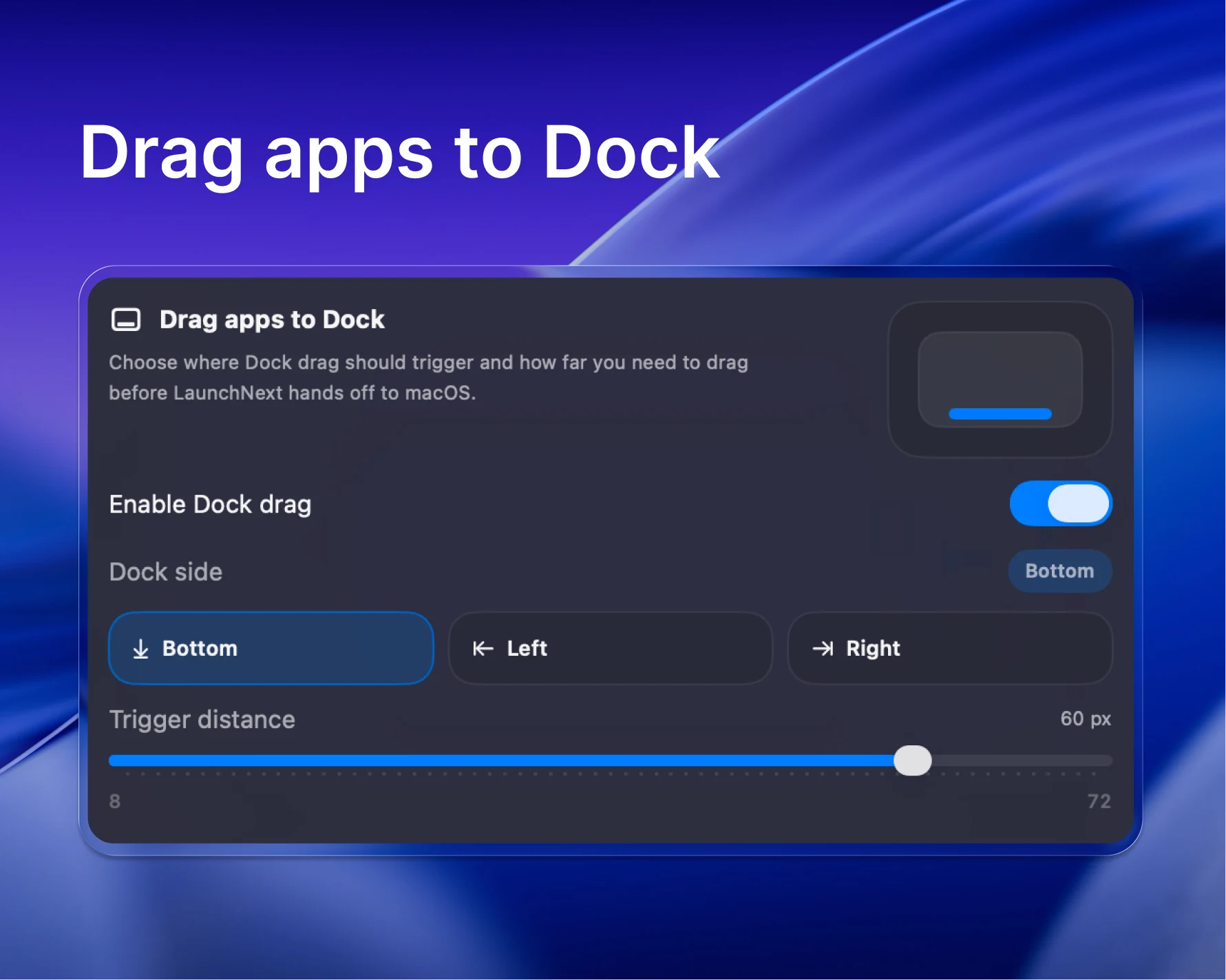
This section controls how LaunchNext hands an app off to the macOS Dock while you are dragging. It is useful if you keep LaunchNext open and want to pin apps to Dock without leaving the grid.
What you can change
Enable Dock drag: turns Dock handoff on or off.Dock side: chooseBottom,Left, orRightso LaunchNext matches your real Dock position.Trigger distance: sets how far you need to drag before LaunchNext stops holding the item and lets macOS take over.
The trigger distance range is 8 px to 72 px. The default is 50 px.
When to Raise or Lower the Distance
- Lower values feel faster, but can trigger accidentally.
- Higher values give you more control if you often reorganize apps inside LaunchNext before dropping them.
Hot Corner
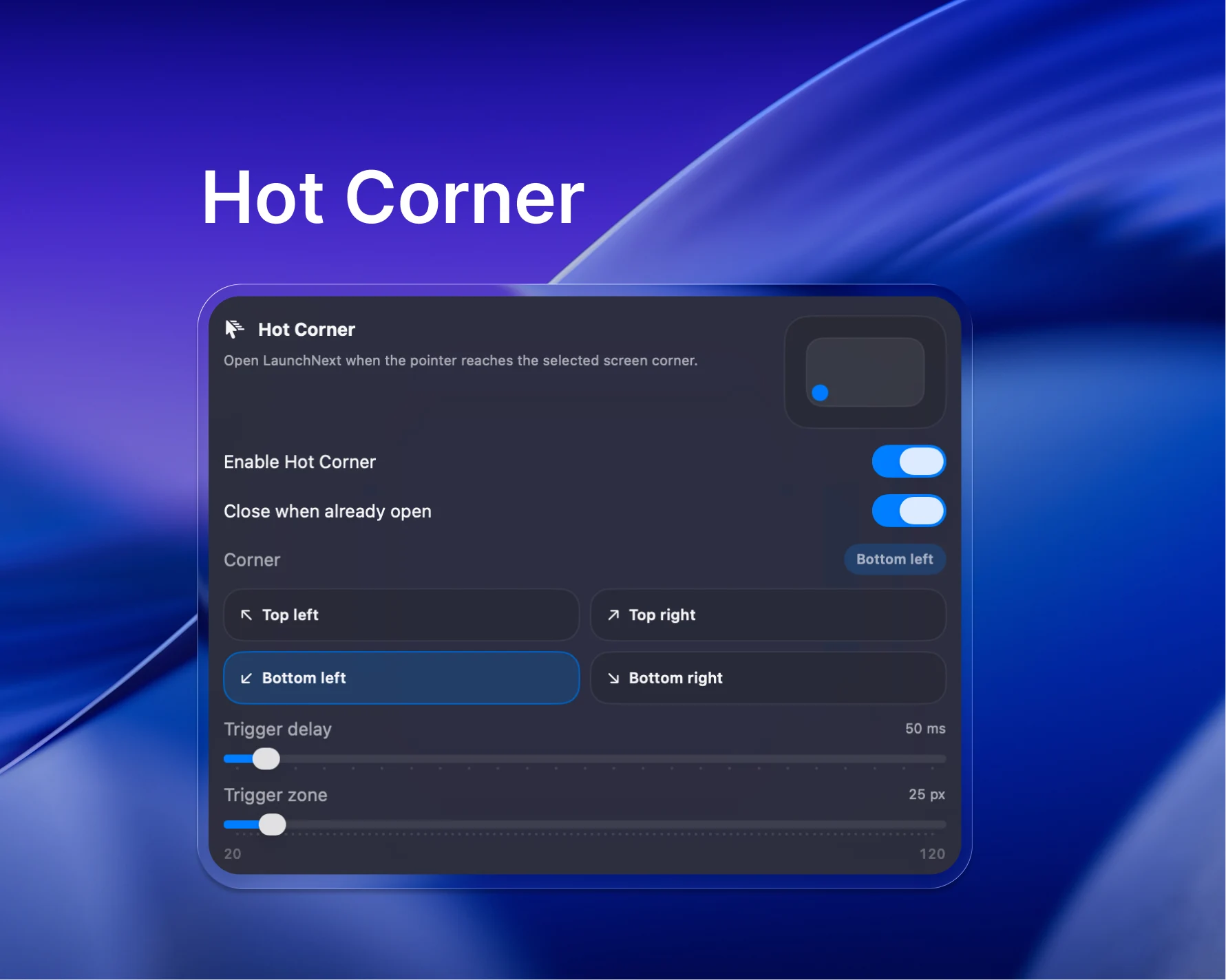
Hot Corner opens LaunchNext when the pointer reaches a selected screen corner.
Main controls
Enable Hot Corner: turns the feature on.Close when already open: uses the same corner as a toggle instead of open-only.Corner: chooseTop left,Top right,Bottom left, orBottom right.Trigger delay: how long the pointer must stay in the corner before LaunchNext opens.Trigger zone: the size of the active corner hitbox.
The trigger delay range is 0 ms to 1200 ms, with a default of 250 ms. The trigger zone range is 20 px to 120 px, with a default of 50 px.
Practical tuning
- Use a short delay if you want instant access.
- Increase delay first if the corner opens by accident.
- Increase the trigger zone only if the corner feels too hard to hit.
Scroll and paging direction
Scroll & paging direction sits between Hot Corner and the gesture section. It keeps mouse wheel input and trackpad input on separate settings, because the two often need opposite corrections.
Mouse wheel
Reverse wheel page direction: flips which way the wheel moves between pages.Reverse wheel vertical scroll: flips vertical scrolling inside a page or inside a vertically scrolling folder.
Both apply to wheel input only. A trackpad or Magic Mouse is not affected by either.
Trackpad and Magic Mouse
Trackpad & Magic Mouse vertical direction is a separate choice with two options:
Finger moves up -> Next page / Show lower itemsFinger moves up -> Previous page / Show upper items
Pick whichever matches how you have macOS natural scrolling set. If paging feels correct but scrolling inside a folder feels backwards, you are adjusting the wrong control — the two wheel switches and this one are independent.
Experimental trackpad gestures
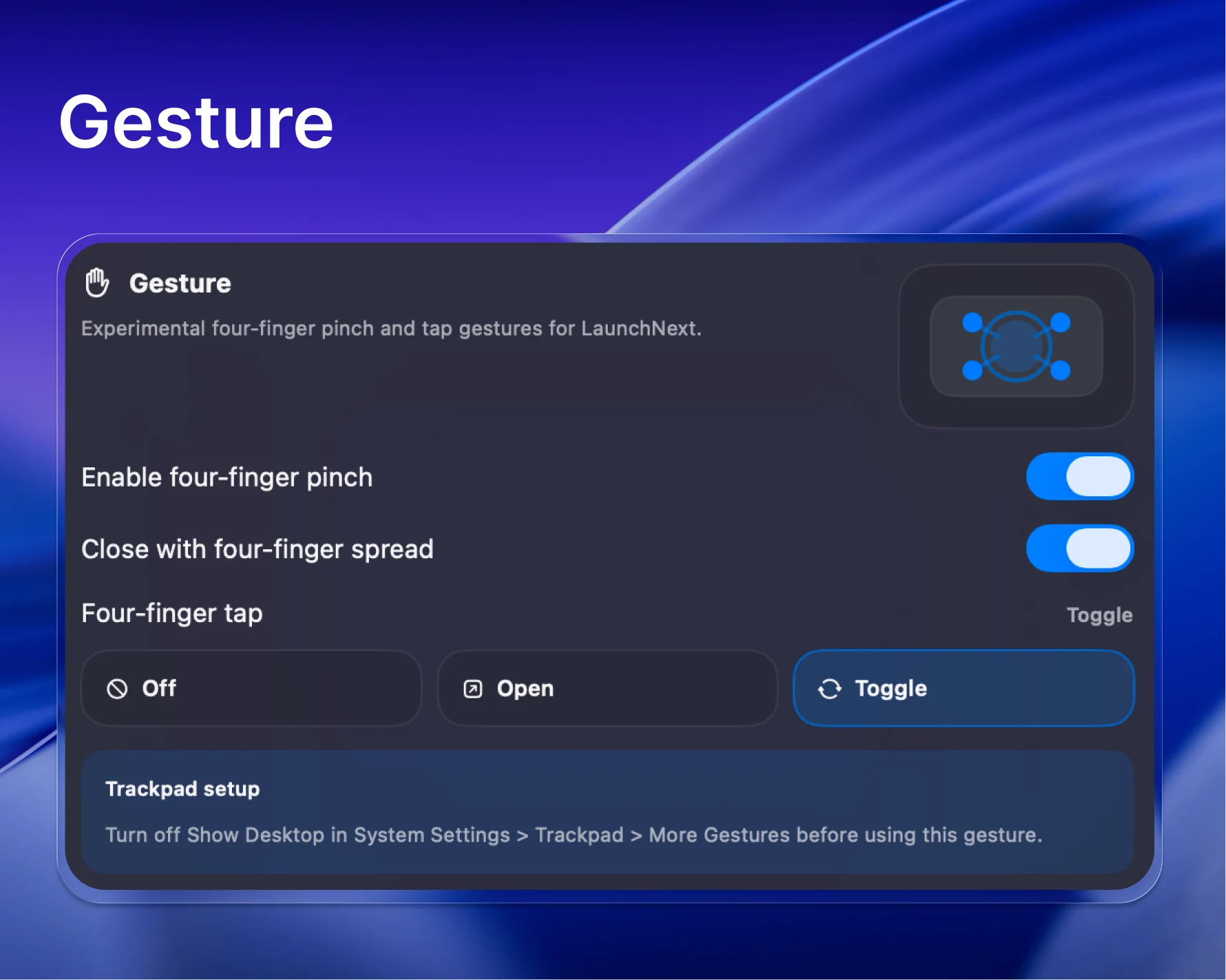
LaunchNext also includes an experimental low-level trackpad gesture section.
Available options
Enable pinch gesture: lets a pinch gesture open LaunchNext.Close with spread gesture: lets the reverse gesture close it again.Tap gesture: chooseOff,Open, orToggle.Gesture fingers: choose4 fingersor5 fingers.Gesture input device: chooseAutoorSelected devices.
Gesture input device
Auto listens to all available trackpads and uses the first one that triggers a valid gesture.
Selected devices lets you choose specific trackpads. This is useful when you use both a built-in trackpad and an external trackpad and want LaunchNext to listen to only one of them.
LaunchNext labels devices as Built-in or External. If a selected device is unavailable, reconnect it or choose another trackpad.
By default the list shows only devices LaunchNext recognizes as trackpads, marked Recommended. Turn on Show all input devices to list other multitouch devices as well. Those are marked Unverified and carry a warning, because LaunchNext cannot confirm they are trackpads. Use it to test a device that does not show up otherwise, and in particular when no recommended trackpad is found at all.
Important system conflict
Before using the gesture, turn off Show Desktop in System Settings > Trackpad > More Gestures. If the macOS gesture stays enabled, the system may intercept the same input before LaunchNext sees it.
Reliability notes
- Gesture support is marked experimental, so behavior can vary with different trackpads and gesture tools.
- Recent builds recover gesture monitoring more cleanly after sleep and wake, but if gestures stop responding entirely, relaunching LaunchNext is still the fastest reset.
Troubleshooting
Shortcut records but does not trigger
- Check for conflicts with Spotlight, Raycast, Alfred, or macOS keyboard shortcuts.
- Clear the shortcut and record it again.
- Prefer a combination with at least one modifier.
Drag to Dock does not hand off
- Confirm
Enable Dock dragis on. - Make sure
Dock sidematches your actual Dock position. - Raise
Trigger distanceif handoff happens too early, or lower it if it never happens.
Hot Corner opens too often
Increase Trigger delay first. If that is not enough, move the trigger to a less busy corner.
Gesture does nothing
- Turn off
Show Desktopin macOS trackpad settings. - Confirm
Tap gestureis not set toOffif you are testing tap. - If using
Selected devices, confirm at least one connected trackpad is selected. - Restart LaunchNext if gesture monitoring was interrupted after sleep or a system input change.