
LaunchNext
LaunchNext is the most feature-complete and best-performing open-source, free macOS Launchpad replacement.
Download
- Releases: Download LaunchNext
- Project: LaunchNext repository
Optional Homebrew install, if you already use Homebrew:
brew tap RoversX/homebrew-tap
brew install --cask launchnext
Screenshots
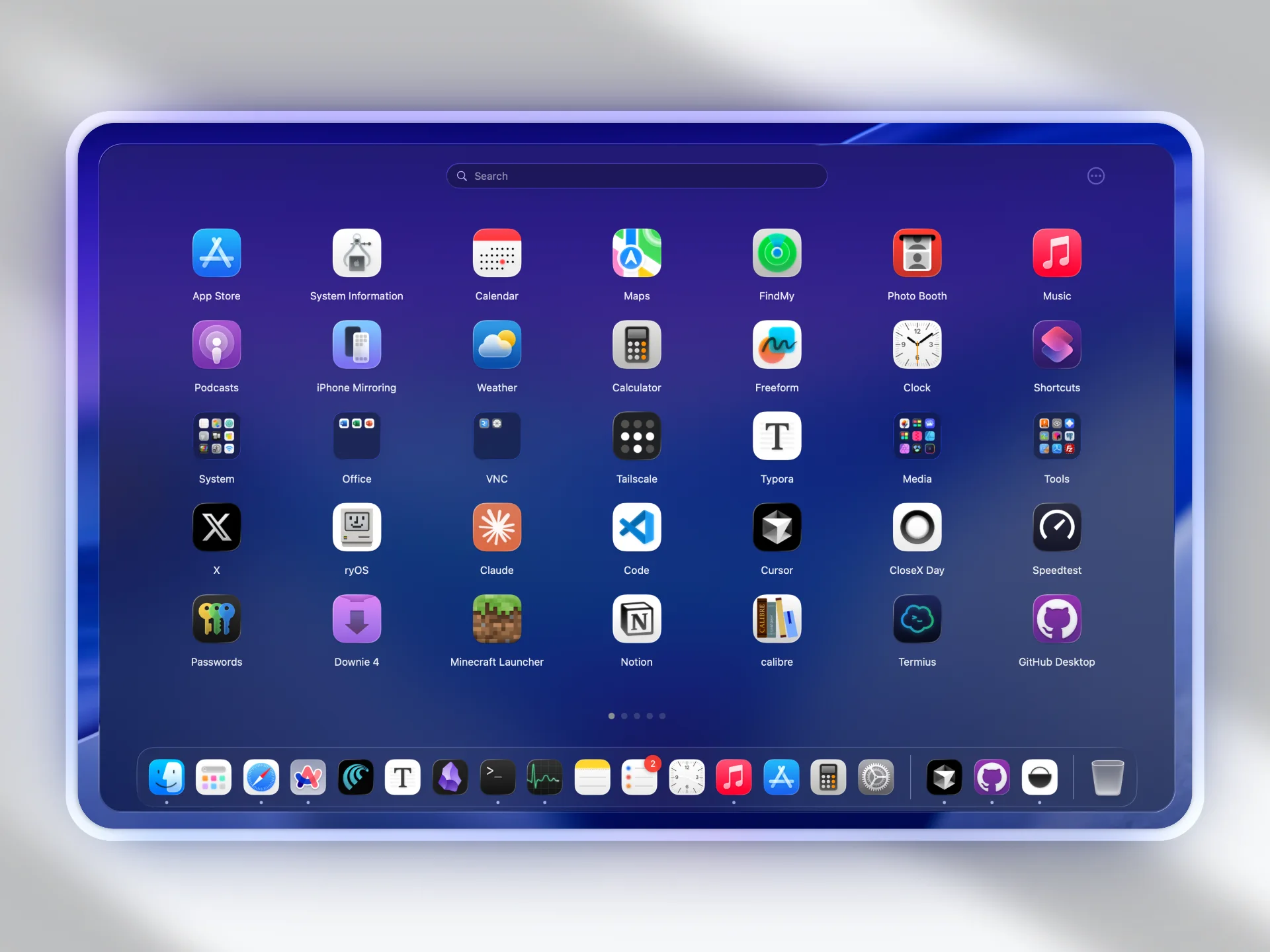
Why LaunchNext matters
LaunchNext exists to bring back a fully customizable launcher workflow on modern macOS:
- Native Launchpad workflow changed in macOS Tahoe.
- Default alternatives are less flexible for personal app organization.
- LaunchNext restores drag-and-drop layout control, folder workflows, and fast navigation.
What LaunchNext delivers
- One-click import from your old Launchpad layout and folders
- Classic Launchpad-style interaction model
- 14 interface languages, including Simplified and Traditional Chinese, Japanese, and Korean
- Hide icon labels when needed
- Adjustable icon sizing and folder layout modes
- Core Animation grid and folder rendering for smoother large layouts
- Image backgrounds taken from your desktop wallpaper or a picture you choose
- Folder management with drag-and-drop organization
- Folder Quick Launch to start an app straight from a folder's right-click menu
- Right-click app and folder actions for Finder, path copy, hiding, rename, dissolve, and uninstall workflows
- Dock drag handoff, Hot Corner, and configurable experimental trackpad gestures
- Fuzzy search with pinyin and romaji matching, keyboard navigation, and Return-to-open search results
- Built-in updater with in-app Markdown release notes
- CLI and TUI workflow for power users, automation, and AI agents
Requirements
- macOS 26 (Tahoe) or later
- Apple Silicon or Intel
- Xcode 26 (for source builds)
Installation notes
Download the app from Releases first. This is the most direct path for most users.
Since 2.4.2, releases are signed and notarized by Apple, so a normal download opens without extra steps. The certificate is a yearly membership and may not be renewed; if it lapses, later releases go back to unsigned builds.
If macOS still blocks startup — an older release, an unsigned build, or a copy you built yourself:
sudo xattr -r -d com.apple.quarantine /Applications/LaunchNext.appThis clears the download marker and skips the usual Gatekeeper check. Run it only for apps you trust.
If you prefer terminal-based app management, you can install with Homebrew:
brew tap RoversX/homebrew-tap
brew install --cask launchnext
Build from source
git clone https://github.com/RoversX/LaunchNext.git
cd LaunchNext
open LaunchNext.xcodeproj
A paid Apple Developer membership is not required to build LaunchNext. In the LaunchNext target under Signing & Capabilities, set Team to None and the certificate to Sign to Run Locally, and keep Hardened Runtime enabled. Xcode may mark the project file as modified afterwards; keep signing-only changes out of pull requests.
Select My Mac as the run destination to launch with ⌘R. Any Mac (arm64, x86_64) is for generic builds and archives and cannot launch the app for debugging.
Command-line build:
xcodebuild -project LaunchNext.xcodeproj -scheme LaunchNext -configuration ReleaseUniversal binary build:
xcodebuild -project LaunchNext.xcodeproj -scheme LaunchNext -configuration Release ARCHS="arm64 x86_64" ONLY_ACTIVE_ARCH=NO clean buildData storage
~/Library/Application Support/LaunchNext/Data.store
Native Launchpad integration
LaunchNext reads the native Launchpad database:
/private$(getconf DARWIN_USER_DIR)com.apple.dock.launchpad/db/db
This allows importing your previous app positions, pages, and folder structure.
Quick start
- Download LaunchNext from Releases and open it.
- Launch LaunchNext and wait for the first app scan.
- Open Settings and run
Import Launchpad. - Tune layout, appearance, shortcuts, and performance settings.
- If anything behaves unexpectedly, check troubleshooting first.