
LaunchNext
LaunchNext is the most feature-complete and best-performing open-source, free macOS Launchpad replacement.
Download
- Releases: Download LaunchNext
- Project: LaunchNext repository
Screenshots
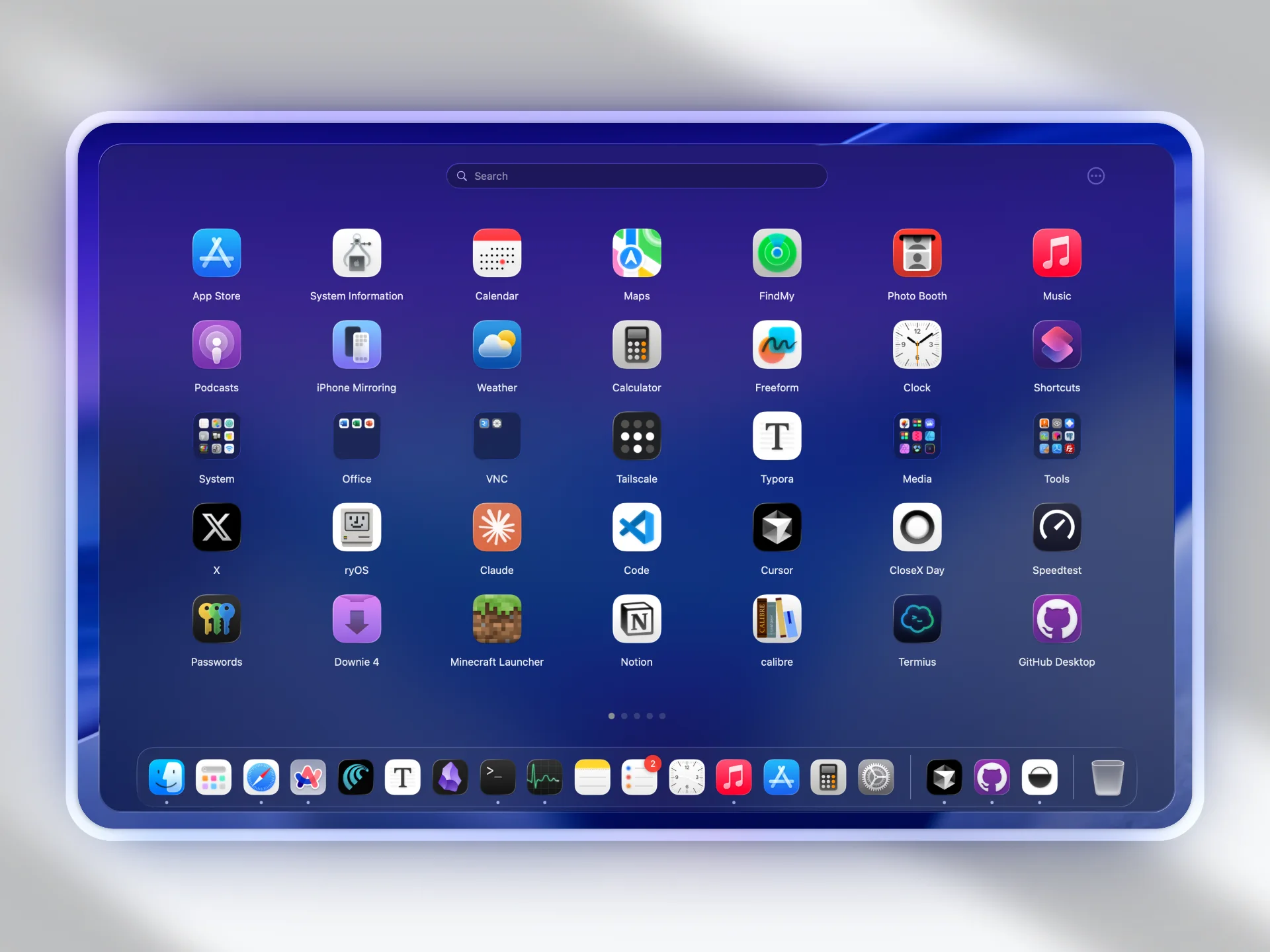
Why LaunchNext
LaunchNext exists to bring back a fully customizable launcher workflow on modern macOS:
- Native Launchpad workflow changed in macOS Tahoe.
- Default alternatives are less flexible for personal app organization.
- LaunchNext restores drag-and-drop layout control, folder workflows, and fast navigation.
What LaunchNext Delivers
- One-click import from your old Launchpad layout and folders
- Classic Launchpad-style interaction model
- Multi-language support
- Hide icon labels when needed
- Adjustable icon sizing
- Folder management with drag-and-drop organization
- Search and keyboard navigation
Requirements
- macOS 26 (Tahoe) or later
- Apple Silicon or Intel
- Xcode 26 (for source builds)
Installation Notes
If macOS blocks startup (common for unsigned apps):
bash
sudo xattr -r -d com.apple.quarantine /Applications/LaunchNext.appRun this command only for apps you trust.
Build From Source (README Flow)
bash
git clone https://github.com/yourusername/LaunchNext.git
cd LaunchNext
open LaunchNext.xcodeproj
Command-line build:
bash
xcodebuild -project LaunchNext.xcodeproj -scheme LaunchNext -configuration ReleaseUniversal binary build:
bash
xcodebuild -project LaunchNext.xcodeproj -scheme LaunchNext -configuration Release ARCHS="arm64 x86_64" ONLY_ACTIVE_ARCH=NO clean buildData Storage
~/Library/Application Support/LaunchNext/Data.store
Native Launchpad Integration
LaunchNext reads the native Launchpad database:
/private$(getconf DARWIN_USER_DIR)com.apple.dock.launchpad/db/db
This allows importing your previous app positions, pages, and folder structure.
Quick Start
- Launch LaunchNext and wait for the first app scan.
- Open Settings and run
Import Launchpad. - Tune layout, appearance, and performance settings.
- If anything behaves unexpectedly, check troubleshooting first.